White paper: Migration and Integration Guide
- White paper: Compliance by Architecture
- White paper: Beyond the Server
- White paper: Migration and Integration Guide
- White paper: Rooms for Education
- White paper: Digital Signage without the Carbon Footprint
- White paper: The Subscription Fatigue Cure
- White paper: The Third Way
- White paper: The Walled Garden
- White paper: The Sovereign Office
Migration and Integration Guide:
Moving to Tigermeeting from your current room-booking system
Zoltan Arpadffy, CTO
Executive Summary
Moving to Tigermeeting is mostly a reconnection job, not a data migration, because in most deployments room bookings live in the calendar system and not in the room-display product.
This guide takes IT teams from inventory to decommissioning in six phases. It covers every calendar system Tigermeeting supports: Microsoft 365 and Exchange, Google, Zoho Workplace, Yandex 360, Lark, Feishu, DingTalk, WeCom, Cybozu Garoon, Odoo, HCL Domino, CalDAV servers such as Zimbra, Carbonio and Nextcloud, and iCalendar feeds. It shows how to model rooms in each, how to grant least-privilege access, how to run the old and new systems side by side, and how to cut over from a cloud SaaS room-booking service.
The rule of thumb is simple: pilot one floor, run both systems against the same room calendars, then cut over floor by floor. Nothing is deleted until the end, so every step before decommissioning can be rolled back.
Before you start: inventory and decisions
Settle seven questions before touching a panel; each one removes a common source of delay.
| Decision | Why it matters |
|---|---|
| Which calendar system holds your rooms? | Each Tigermeeting network connects to one calendar system at a time. The choice sets the connector, the sign-in method and the permissions to request. |
| How many rooms, and how are they named? | Room names come from the calendar system, so name rooms there first. A room with several entrances needs one screen per entrance. |
| How many licences do you need? | Each screen needs one licence, either a booking-screen or an overview-screen licence. All future upgrades included. Free demo licences, usually valid for 30-60 days, cover a pilot. |
| Which displays will you use? | Tigermeeting runs on Android displays and tablets from many brands, from Android 5.0 upwards. Check each model against the hardware compatibility matrix in the Android setup manual. |
| Which network segment will the screens sit on? | Screens find each other by broadcast and need UDP ports 6024, 6025, 6030 and 6031 and TCP port 6026 open inside one segment. Each segment is its own Tigermeeting network, managed separately. |
| Is the time correct on every screen? | Screens exchange data using timestamps, and calendars can refuse a connection if the clock is wrong. NTP, local network time or manual settings all work if time and time zone are right. |
| What may leave the network? | Outbound TCP 443 to your calendar provider if it is cloud-hosted, and to tigermeeting.app for admin login, licence validation, update checks and optional services. After first setup, on-premises systems can run without internet access. |
| Who runs the admin app? | The admin app runs on Windows, macOS or Linux and joins the network only to change configuration. Only one admin app can be active per network, and the first login needs internet access. |
| What are your booking rules? | Booking mode, time-picker step, meeting confirmation and cancel rules, and whether meeting titles are shown. Set them once and distribute them to all screens. |
Choosing the integration path per calendar platform
Choose the connector by where your room calendars live today, not by where you would like them to live. Each Tigermeeting network connects to one calendar system at a time, so sites on separate network segments can use different systems. Tigermeeting supports virtual networks on the very same LAN. Platforms marked on-premises keep the whole data path inside your network and can run air-gapped after the first setup. The current list is at https://tigermeeting.app/calendars.
| Platform | Runs | Sign-in | Rooms are | Notes |
|---|---|---|---|---|
| Microsoft 365, Exchange Online | Cloud | OAuth 2.0 through Tigermeeting's Microsoft-certified Azure app, with a dedicated account that has a calendar-enabled licence. MFA is supported. | Room mailboxes in a room list | Connects through Microsoft Graph, so it is not affected by Microsoft switching off EWS in Exchange Online. A helper script sets up room lists. |
| Exchange Server on-premises | On-premises | A service account over NTLM, v1 or v2. Basic authentication is not supported. | Room mailboxes in a room list | Connects through EWS. Supports Exchange 2007 to 2019 and Subscription Edition. Works offline. |
| Exchange Hybrid | Both | As the matching connector | Room mailboxes on-premises or in Exchange Online | Attach Graph where the room mailboxes are in Exchange Online and EWS where they are on-premises, one connector per Tigermeeting network. |
| Google Workspace | Cloud | A calendar-enabled admin account authorises Tigermeeting's Google-verified app (OAuth 2.0) | Calendar resources from the Admin console | Imports only the rooms the account has rights to. Room details are managed in Google. |
| Google Calendar | Cloud | An ordinary Google account | A calendar for each room, created from the admin app | The simplest production setup for organisations without Workspace. |
| Zoho Workplace | Cloud | Your own Zoho OAuth app (Client ID and Secret) and data-centre region; an organisation admin signs in | Zoho Bookings resources, grouped by branch | Panel bookings reach Zoho within seconds. |
| Yandex 360 | Cloud | Your own Yandex OAuth app; an organisation admin signs in once. The token lasts about a year. | Meeting rooms in Offices and meeting rooms | Shows free and busy only. Needs a verified company domain. |
| Lark, Feishu | Cloud | The admin signs in to Tigermeeting's certified Lark or Feishu app | Meeting rooms, imported as a tree | The admin must be subscribed to the rooms and be room administrator. Needs at least the Pro plan for its API quota. |
| DingTalk | Cloud | An organisation admin authorises Tigermeeting's DingTalk app (OAuth 2.0) | Rooms and room groups from the DingTalk admin console | Room calendar APIs exist only in the mainland China instance. In testing. |
| WeCom | Cloud | Your own self-built WeCom app (CorpID and Secret) and the userid of the member panel bookings are made for | Meeting rooms from the Meeting Room app, by city, building and floor | The public IP of the screens and the admin PC must be in the app's trusted IPs. Only rooms without approval can be booked from the screens. |
| Cybozu Garoon cloud | Cloud | A cybozu.com OAuth client; one user signs in once (SAML and two-factor supported) | Facilities and facility groups | cybozu.com IP restrictions must allow the screens and the admin PC. |
| Cybozu Garoon package | On-premises | A technical Garoon user with login name and password | Facilities and facility groups | Garoon 4.10 or later. Nothing leaves your network. |
| HCL Domino | On-premises | A technical Notes user with an internet password, through the Domino REST API or Domino Access Services | Rooms from the Rooms & Resources database | Domino's Rooms & Resources Manager accepts or declines each booking. Tested with Domino 14.5. |
| Odoo ERP | Both | Host URL, database name, and a user or service account with a password or API key | Odoo Contacts added as meeting attendees | Direct JSON-RPC connection, Odoo Online or self-hosted. |
| CalDAV servers | Both | Server URL, server profile, username and password | One calendar collection per room | Any RFC 4791 server: Zimbra, Zextras Carbonio and Carbonio CE, IceWarp, Nextcloud, ownCloud, OX App Suite and openDesk, SOGo, Baïkal, Radicale, Apple iCloud. Built-in profiles for the common servers. Use HTTPS with a valid certificate chain; self-signed certificates fail. Moving from Zimbra to Carbonio CE needs only a server URL change. |
| iCalendar, Webcal feeds | Both | Feed URL only | One feed per room, created in the admin app | Read-only, built for school and university timetables. Many systems publish feeds, including Exchange, Google, Zimbra, Nextcloud, Skedda, Yarooms and SuperSaaS. |
| Built-in local calendar | On-premises | None | Rooms created in the admin app | Syncs bookings between the screens only. Used for demos and as the fallback when a demo licence expires; not intended for production. |
Modelling rooms and resources per backend
Each physical room needs exactly one resource in your calendar system, named to match its screen.
| Backend | Create the room as | Group rooms with | Make it accept bookings by |
|---|---|---|---|
| Exchange, Exchange Online, Microsoft 365 | A room mailbox of type room, with a name, an alias and a capacity | A room list, set up with Tigermeeting's helper script | Setting the mailbox's calendar processing to auto-accept |
| Google Workspace | A calendar resource under Buildings and resources in the Admin console | Building, floor and resource category | Checking the resource's invitation settings. Non-conflicting invitations are normally accepted automatically. |
| Google Calendar | A calendar created from the admin app | Nothing needed | Nothing needed: the account owns the calendars |
| Zoho Workplace | A Zoho Bookings resource | Branch | The resource's availability in Zoho Bookings |
| Yandex 360 | A meeting room under Offices and meeting rooms, with office, floor and capacity | Office and city | Leaving booking enabled on the room |
| Lark, Feishu | A meeting room in the admin console | Buildings and floors (rooms sit on the fifth level of the tree) | Subscribing the admin to the room and making the admin room administrator |
| DingTalk | A meeting room in the DingTalk admin console | Room groups | Granting the app calendar and meeting-room permissions |
| WeCom | A room in the Meeting Room app (会议室), with city, building, floor and capacity | City, building and floor | Leaving approval off on the room |
| Cybozu Garoon | A facility | Facility groups, up to three levels | Facility usage requests: off for instant bookings, on to make bookings wait for approval |
| HCL Domino | A room in the Rooms & Resources database | Sites | Domino's Rooms & Resources Manager, which applies capacity, hours, owner approval and restrictions |
| Odoo ERP | A Contact for each room | A naming convention | Nothing needed: the room is added to meetings as an attendee |
| Zimbra, Carbonio | A resource account of type location | A naming convention or distribution list | Choosing an auto-accept policy and setting the resource's authentication password |
| Other CalDAV servers | A dedicated calendar user or collection per room | A naming convention | Enabling server-side scheduling with auto-accept |
| iCalendar, Webcal, local calendar | A room created in the admin app | The admin app's floors and buildings | Not applicable: feeds are read-only, and the local calendar books on the screens |
Three rules apply on every backend:
-
One naming scheme. Use building, floor and room, for example HQ-3-Atlas, and reuse it on the screen. (this is just a recommendation)
-
Conflict checking stays on at the server. The calendar and the screens must agree on what is free.
-
Record capacity and equipment on the resource wherever the platform supports it. Garoon has no capacity field, so enter it in the admin app's Rooms tab.
Service accounts, permissions and least privilege
Give Tigermeeting one dedicated identity per calendar system, scoped to room resources only.
-
Exchange Online and Microsoft 365: use a dedicated account with a calendar-enabled licence, such as Microsoft 365 Business Basic or E1, and permissions on the room resources only. Use the same account to create the room lists and to attach the calendar in the admin app. Room resources themselves need no licence. Tigermeeting's Microsoft-certified Azure app asks for consent when that account signs in.
-
Exchange on-premises: use a service account with the administrator role needed to set up room lists, and read and write permission on the room calendars. Enable NTLM, because Basic authentication is not supported. Allow one session per screen for this account, or larger installations can hit Exchange's default limit of 16 sessions.
-
Google Workspace: use a dedicated Google Workspace account that can see and book the resource calendars.
-
Zoho Workplace and Yandex 360: register your own OAuth application with only the permissions Tigermeeting lists, and sign in with a dedicated account. That account becomes the organiser of panel bookings.
-
Lark, Feishu and DingTalk: use a dedicated admin account for the certified app. On Lark and Feishu it must be subscribed to the rooms and be room administrator to change bookings made by others.
-
WeCom: create a self-built app only for Tigermeeting, allow it to call the meeting-room and schedule APIs, keep its trusted IPs to your own public addresses, and pick a dedicated member as the booker.
-
Cybozu Garoon: in the cloud, allow only the signing-in user on the OAuth client; on a package server, use a technical user that can view and book only the facilities the screens show.
-
HCL Domino: use a technical Notes user with an internet password and access only to the room resources it must book.
-
Odoo: use a service account with read and write rights on Calendar and Contacts, preferably with an API key instead of a password.
-
CalDAV servers, Zimbra and Carbonio: create a dedicated service account with access to the room calendars, never an administrator account for daily use.
For cloud calendars the screens hold revocable tokens, not passwords, so revoking the application's consent cuts off every screen at once. Document that step and test it before go-live. The screens renew tokens about 10 minutes before they expire, so keep at least one or two screens online overnight and at weekends. If every screen is off when renewal is due, the token expires and you must sign in again in the admin app. Name the account after its purpose, rotate its secrets, and keep the laptop that runs the admin app hardened.
Phased migration plan
Six phases take you from inventory to decommissioning, with two acceptance gates before anything is deleted.
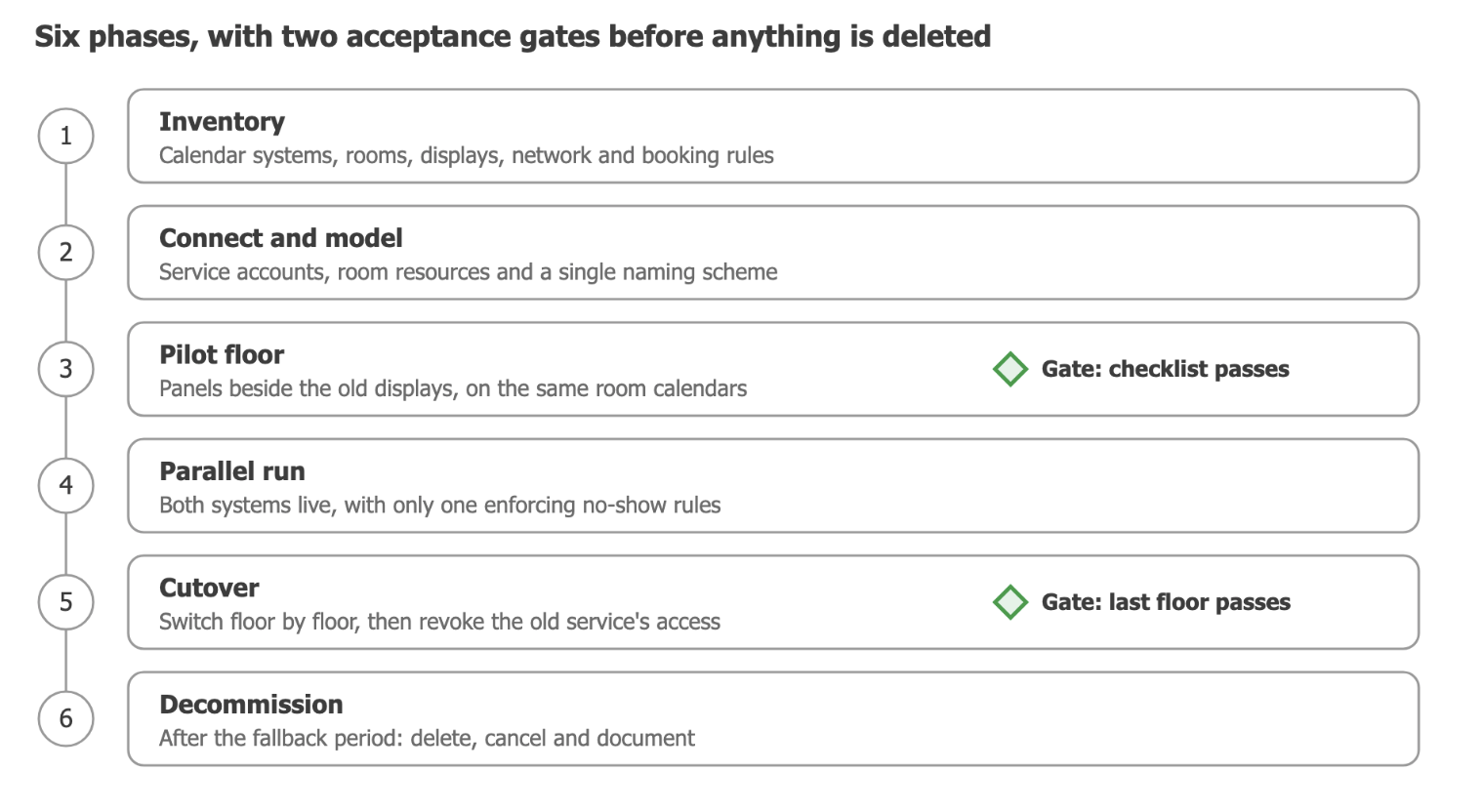
A gate means the acceptance checklist passes for the pilot floor or for the last floor. Nothing is deleted before phase 6.
Cutover from a cloud SaaS room-booking service
Run both systems against the same room calendars, then switch floor by floor, and delete nothing until the end.
-
Check where bookings live. Open a room's calendar in Outlook or Google Calendar and confirm that future bookings appear there. Most services write to the calendar, but some keep bookings only in their own database. If yours does, export those bookings and recreate them, or let them lapse.
-
Export the room list and policies from the old service: names, capacities, booking limits and check-in rules.
-
Install Tigermeeting panels on one pilot floor, beside the old displays, and connect them to the same room calendars. Bookings made on a screen are written to the calendar server at once, so the old displays see them too. Request free demo licences for the pilot. They are fully functional and usually valid for 30 days.
-
Stop two systems enforcing no-show rules. If both release unchecked bookings, they will fight over the same ones. Switch off auto-release on the old service for the pilot rooms.
-
Announce the change to users. Booking from the panel and check-in rules may differ from what people know.
-
Switch floor by floor. Remove or blank the old displays as each floor passes acceptance testing.
-
Revoke the old service's access to your calendar system once the last floor has switched.
-
Keep the old service read-only for a fixed period, for example 30 days, as a fallback. Then follow the decommissioning steps.
Testing and acceptance checklist
Accept a floor only when every test below passes, and record the result for each room.
Troubleshooting common problems
Most problems in a first deployment come from permissions, time or network placement.
| Symptom | Likely cause | Fix |
|---|---|---|
| A screen shows no events | Consent revoked, a token that expired because every screen was off when renewal was due, or the account lost access to the room | Sign in again in the admin app, check the account still reaches the room list, and keep one or two screens online overnight |
| Times are off by an hour or a few minutes | Time zone or daylight-saving mismatch, or clock drift | Correct the time zone on the screen and the resource, and fix the device clock through NTP, network time or manual setting |
| Screens do not find each other | Broadcast is blocked, or the screens sit on different segments | Allow broadcast and UDP 6024, 6025, 6030 and 6031 plus TCP 6026 inside one segment. For remote admin over VPN, use Add device with a known screen's IP address. |
| A room cannot be booked | The room is not set to auto-accept, or booking limits are too tight | Check auto-accept and the resource's booking policy |
| A Google resource is missing | The resource is not visible to the account in use, or the scope is wrong | Share the resource with the account and check its scopes |
| A timetable feed shows stale data | The feed is cached or refreshes rarely | Check the feed URL, cache settings and refresh interval |
| Bookings vanish unexpectedly | The old system still auto-releases no-shows | Switch off auto-release in the old service |
| Some screens cannot load bookings from on-premises Exchange | The default limit of 16 sessions per user is exceeded | Allow one session per screen for the admin account |
| WeCom refuses with error 60020 | The public IP of the screens or the admin PC is not in the app's trusted IPs | Add the address to the app's trusted IPs (企业可信IP) |
| Lark or Feishu stops syncing during the month | The plan's API quota is used up | Move to at least the Pro plan |
| Yandex 360 rooms go blank after about a year | The Yandex token expired; it is not renewed automatically | Detach and connect again in the admin app |
| A Garoon booking stays pending | The facility requires a usage request | Approve it in Garoon, or turn usage requests off for that facility |
| A CalDAV server refuses the connection | A self-signed or incomplete certificate chain | Install a certificate with a complete, trusted chain |
| The admin app logs in, then shows Forbidden | The account does not belong to the organisation that owns the licences | Sign in with the licence holder's admin account |
Decommissioning the old system
Decommission only after the last floor has passed acceptance and the fallback period is over.
Conclusion
Moving to Tigermeeting enhances the screens’ behavior on the wall, not the place where your bookings live. Because the room calendars stay in your calendar system, the old and new systems can run side by side, every step before decommissioning can be rolled back, and the risk of the move stays small.
Start with the inventory decisions, model the rooms once in the calendar system, and pilot one floor on free demo licences. When the acceptance checklist passes there, the rest of the building follows floor by floor.
Questions about your own migration?
Write to support@tigermeeting.app.
---
Download the white paper here
- White paper: Compliance by Architecture
- White paper: Beyond the Server
- White paper: Migration and Integration Guide
- White paper: Rooms for Education
- White paper: Digital Signage without the Carbon Footprint
- White paper: The Subscription Fatigue Cure
- White paper: The Third Way
- White paper: The Walled Garden
- White paper: The Sovereign Office
